
adding Firstname and Lastname to the Profile details display


Standard member

Thanks in advance for your help!
Best,
Christopher


Site staff

Browse to Admin Zone→ Setup→ Configuration→ User/usergroup options and enable the first and last name Special CPF's. Then scroll down a bit and add the ID's for those fields into the Display name generator. On my install first name is 35 and last name is 36 so these are the ID's I would need to use. You can check the ID's on your install at Admin Zone→ Tools→ Members→ Custom Profile Fields by selecting edit and viewing the existing field ID's.

Site director

I don't think you need to do the display name bit if you just want them showing individually on your profile.
Edit: I just tested it. Users with the shopping cart addon installed (i.e. a default install which has that) don't need to enable it, but otherwise you do need to enable the checkbox. Otherwise you can't even edit that CPF. The way Composr works in this regard is there are various bundled standardised CPFs, but they only get enabled if something installed needs them or sometimes there's a checkbox to manually unmask them to make them show.
 Last edit: by Chris Graham
Become a fan of Composr on Facebook or add me as a friend. Add me on on Mastodon. Follow me on Minds (where I am most active). Support me on Patreon
- If not, please let us know how we can do better (please try and propose any bigger ideas in such a way that they are fundable and scalable).
- If so, please let others know about Composr whenever you see the opportunity or support me on Patreon.
- If my reply is too Vulcan or expressed too much in business-strategy terms, and not particularly personal, I apologise. As a company & project maintainer, time is very limited to me, so usually when I write a reply I try and make it generic advice to all readers. I'm also naturally a joined-up thinker, so I always express my thoughts in combined business and technical terms. I recognise not everyone likes that, don't let my Vulcan-thinking stop you enjoying Composr on fun personal projects.
- If my response can inspire a community tutorial, that's a great way of giving back to the project as a user.
Site staff

Standard member
Adam said
Hi,
Browse to Admin Zone→ Setup→ Configuration→ User/usergroup options and enable the first and last name Special CPF's. Then scroll down a bit and add the ID's for those fields into the Display name generator. On my install first name is 35 and last name is 36 so these are the ID's I would need to use. You can check the ID's on your install at Admin Zone→ Tools→ Members→ Custom Profile Fields by selecting edit and viewing the existing field ID's.
From “Post #7,210”, 23rd October 2020, 7:32 pm
Thanks Adam! I actually already have the CPF's enabled for Firstname and Lastname. I saw the 'Display name generator' field but didn't know how to find the field ID's. So thanks for that tip! Unfortunately, when I go to Custom Profile Fields and select edit to find the field ID, I'm not seeing it. Here is a screenshot of what I am seeing:
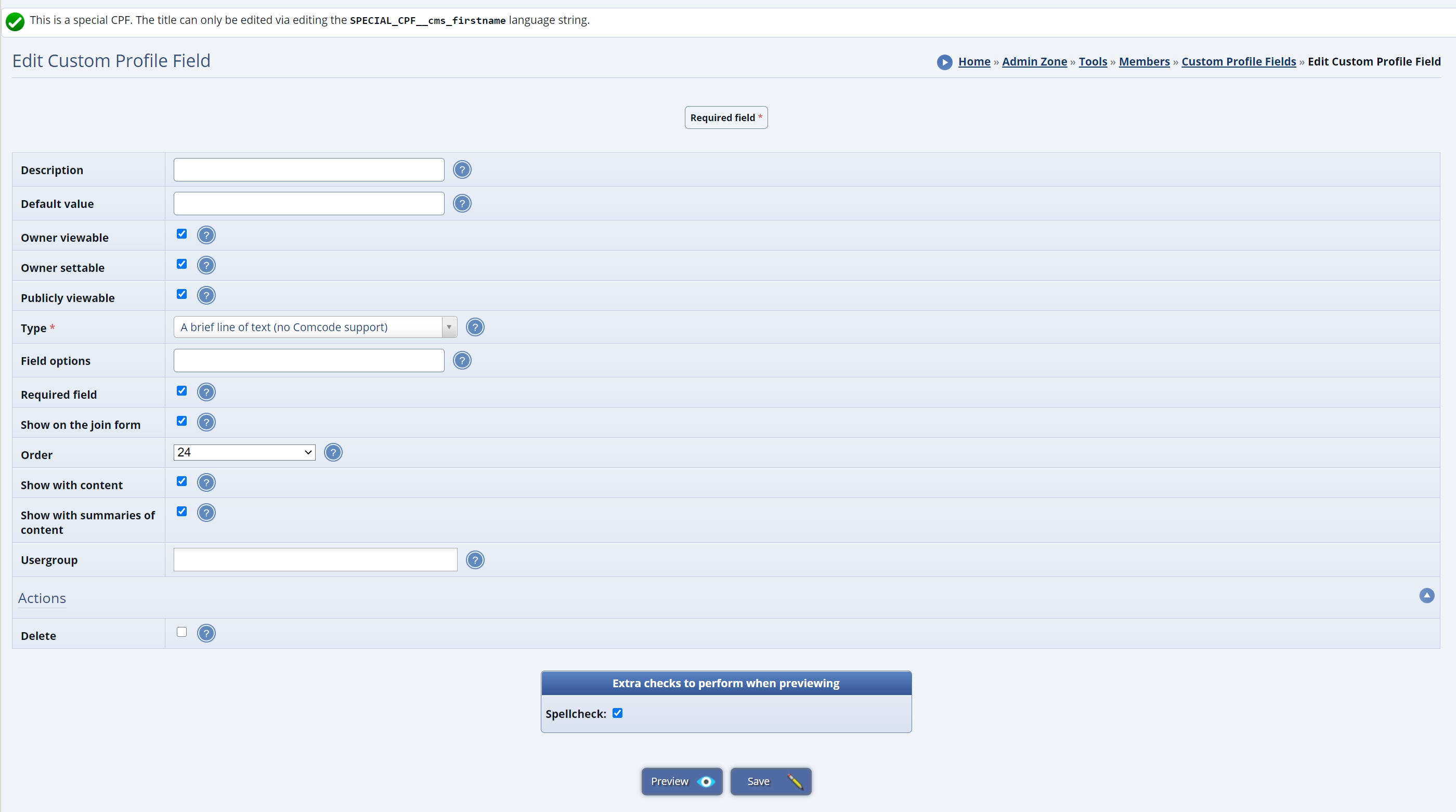
I don't think the Order field is the FieldID, but I'm not seeing FieldID anywhere. This screenshot is for FirstName.
Thoughts?
Standard member
Chris Graham said
Adam gave a good answer. They are masked out by default until that config checkbox is enabled.
I don't think you need to do the display name bit if you just want them showing individually on your profile.
Edit: I just tested it. Users with the shopping cart addon installed (i.e. a default install which has that) don't need to enable it, but otherwise you do need to enable the checkbox. Otherwise you can't even edit that CPF. The way Composr works in this regard is there are various bundled standardised CPFs, but they only get enabled if something installed needs them or sometimes there's a checkbox to manually unmask them to make them show.
From “Post #7,212”, 23rd October 2020, 7:41 pm
Thanks Chris. I do want to show individually on my profile…and to do so you do need to edit the CPF and enable Owner Viewable and Publicly Viewable (which both were not set). Adam's response pointed me in the right direction

Please see my previous response to Adam's post as I am having trouble finding the field ID's in order to take advantage of the Display name generator.
Site director
Become a fan of Composr on Facebook or add me as a friend. Add me on on Mastodon. Follow me on Minds (where I am most active). Support me on Patreon
- If not, please let us know how we can do better (please try and propose any bigger ideas in such a way that they are fundable and scalable).
- If so, please let others know about Composr whenever you see the opportunity or support me on Patreon.
- If my reply is too Vulcan or expressed too much in business-strategy terms, and not particularly personal, I apologise. As a company & project maintainer, time is very limited to me, so usually when I write a reply I try and make it generic advice to all readers. I'm also naturally a joined-up thinker, so I always express my thoughts in combined business and technical terms. I recognise not everyone likes that, don't let my Vulcan-thinking stop you enjoying Composr on fun personal projects.
- If my response can inspire a community tutorial, that's a great way of giving back to the project as a user.
Standard member
Chris Graham said
It's in the URL (address bar) of the edit screen.
From “Post #7,217”, 23rd October 2020, 9:02 pm
Thanks Chris. I suspected that and therefore I looked, and this is what I saw:

However, for other folks that may not have thought to 'click inside the address bar', or perhaps this is specific behavior to certain browsers (I'm using Chrome) — you may need to click inside the address bar in order to see the full URL:

Site staff
Standard member
Adam said
I think the Order ID is the Field ID. I've never checked the URL for it, always check the CPF edit screen and use the Order ID (which I thought was called Field ID so sorry for the confusion).
From “Post #7,222”, 23rd October 2020, 10:31 pm
Actually it turns out the Field ID is what is specified in the address bar. The Order ID appears to be something else. I did try the Order ID initially thinking the same as you, that perhaps the Order ID is the Field ID but when saving and going to my home page the username appeared as "{24} {25}"…so definitely wasn't working. Once I switched to the Field ID as specified in the address bar it did work
Thanks again for the help!
1 guest and 0 members have just viewed this.
